
Self Service Archive Catalog
1. Open Archive and apply filters
- Go to Archive Catalog in the sidebar
- Click Filters.
- Optionally choose a combination of Capture Date range, imaging parameter, and/or apply a map filter (draw bounds or upload GeoJSON).
- Click Apply Filters to apply the filters to the archive items
Applying a GeoJSON map filter
- In map controls, click Use GeoJSON.
- Select a
.geojsonor.jsonfile that is a valid FeatureCollection (prefer Polygon/MultiPolygon in WGS84[lon, lat]). - Confirm the AOI appears on map and results refresh to that geography.
- Optional: click Edit to adjust shape, then Save.
- Use Fit to bounds to recenter on the AOI.
- Click Clear to remove the geographic filter.
Troubleshooting:
- If you see GeoJSON file error, the file is not a valid GeoJSON FeatureCollection.
- If results do not appear filtered, finalize edits with Save and re-check other filters.
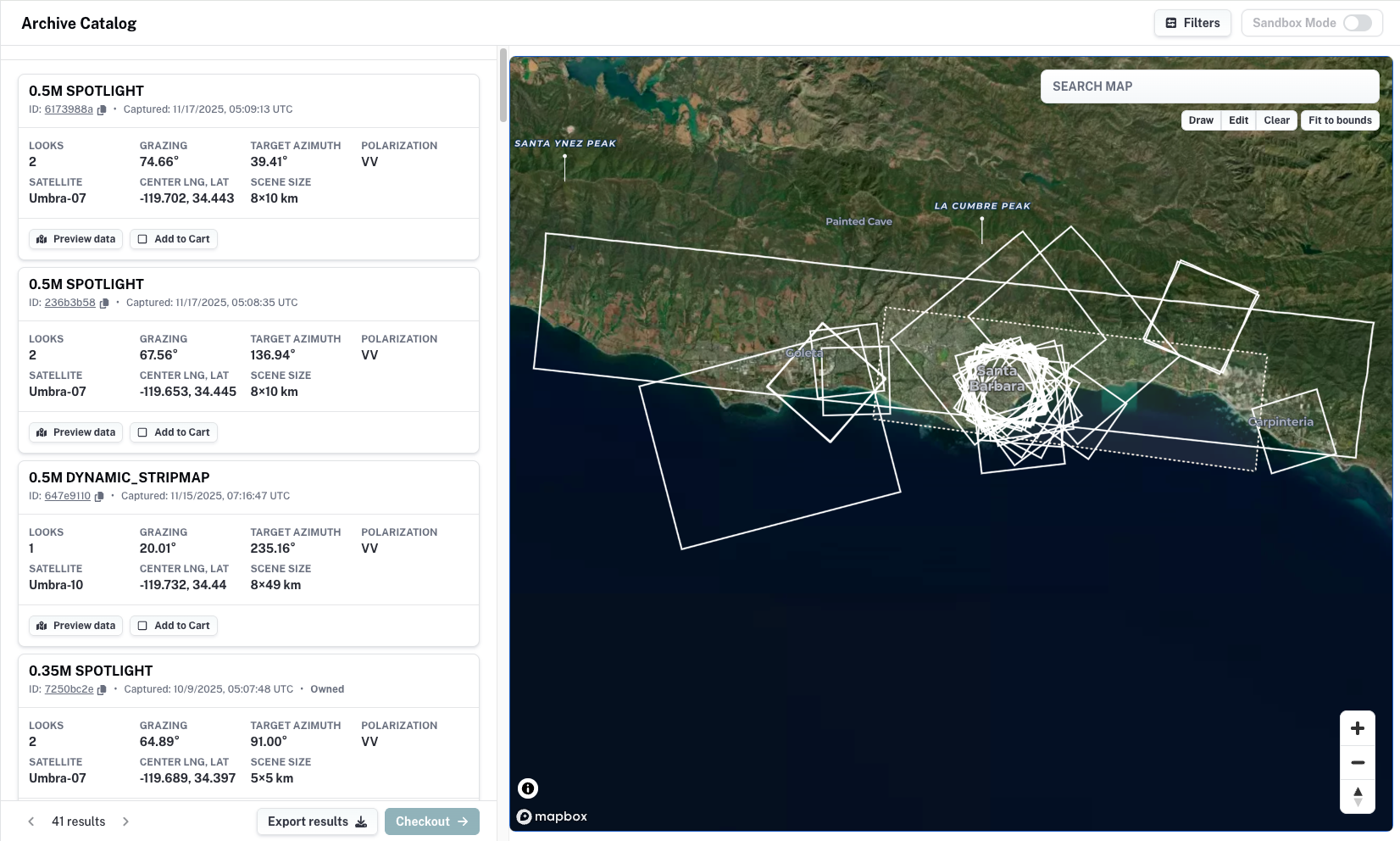
2. Review results and add items to cart
- Browse archive result cards.
- Click Preview data to highlight an item on the map.
- Click Add to Cart for each item you want to order.
- Repeat until your cart count is correct.
3. Proceed to checkout
- Click Checkout in the bottom bar.
- Confirm breadcrumb: Browse Archive Catalog > Checkout.
4. Complete each archive task card
- Confirm or edit Archive Task Name.
- Choose Data Delivery Method (
Canopyor a configured destination). - Optionally set User Order ID.
- Confirm Product Types (GEC remains included).
- Optionally click Preview data to highlight the item in the preview map.
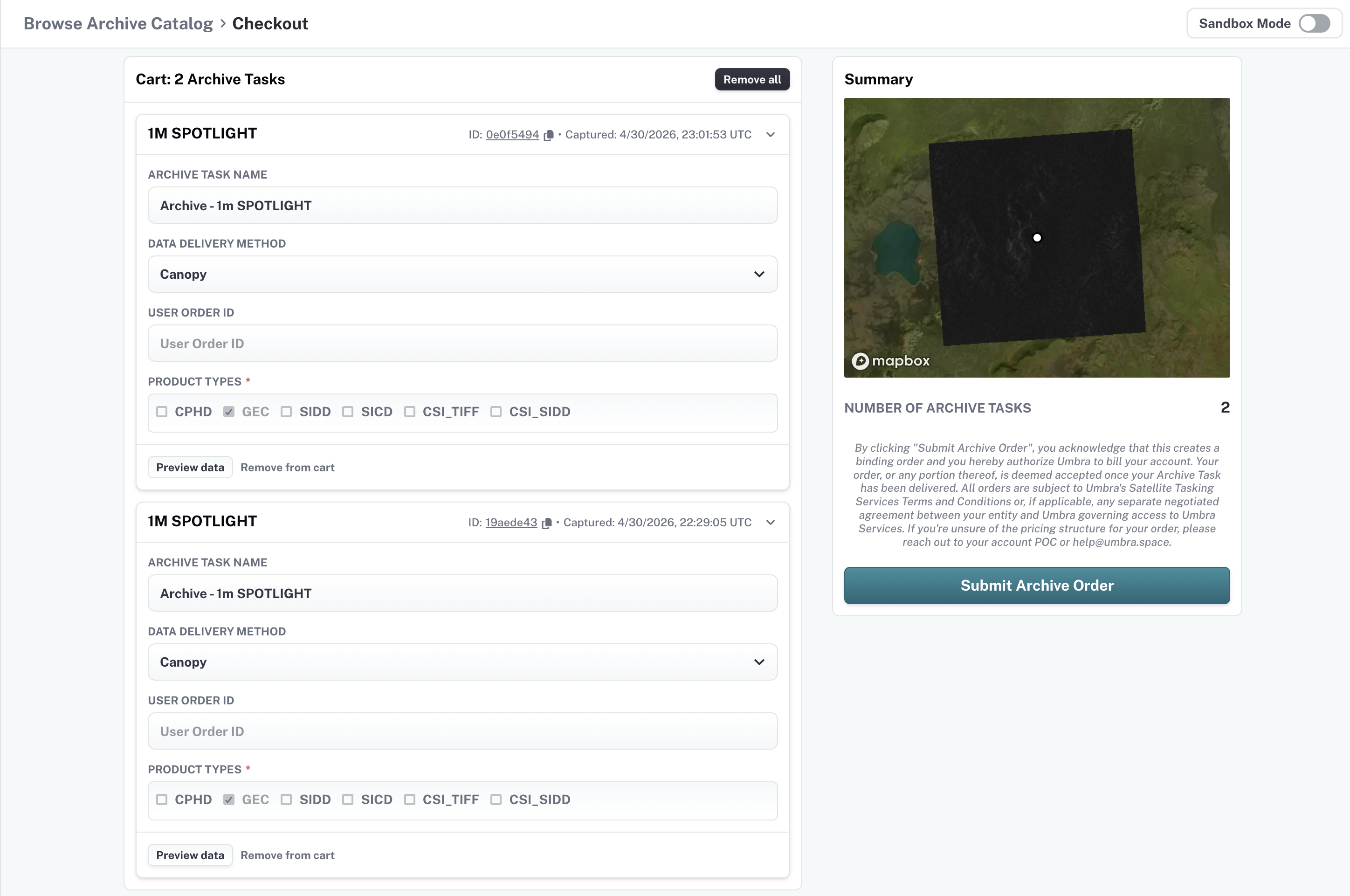
5. Review summary and submit
- Check summary details:
- Number of Archive Tasks
- Review terms text.
- Click Submit Archive Order to submit the order.
6. Confirm outcome
- On success: verify success toast -- redirection to the Archive search page will occur.
- On partial failure: review warning toast for failed collect IDs/messages and retry affected items.
Updated 3 months ago
Did this page help you?